 solisden
The protection already built into your devices
Before you buy any security software, check what your device already has and make sure it is switched on.
Windows 10 and 11
Windows Security (Start → Settings → Privacy & security → Windows Security) brings together:
- Microsoft Defender Antivirus: real-time, cloud-delivered and behaviour-based protection. It turns itself off (passive mode) when another antivirus is installed and back on if that antivirus is removed.
- SmartScreen: warns about known malicious websites and unrecognised downloads in Microsoft Edge and in Windows itself.
- Controlled folder access: an optional anti-ransomware setting that blocks untrusted apps from changing files in protected folders. It is off by default. Find it under Virus & threat protection → Ransomware protection.
- Windows Update: installing security updates is often the single most effective step.
In AV-TEST's July–August 2026 test of Windows 11 security products for home users, Microsoft Defender got 6/6 for protection, 5.5/6 for performance and 6/6 for usability, and a “Top Product” award.
macOS
- Gatekeeper and notarisation check that downloaded apps come from identified developers and have been scanned by Apple.
- XProtect is Apple's built-in signature-based malware detection. It updates automatically when security updates are enabled.
- Check System Settings → General → Software Update → Automatic Updates and keep “Install Security Responses and system files” turned on.
Android
- Google Play Protect scans apps from Google Play and, on supported devices, apps from other sources. Open the Play Store, tap your profile icon, then Play Protect.
- Install apps only from sources you trust, and look at the permissions they ask for.
- Keep the security patch level current. You can see it under Settings → About phone.
iPhone and iPad
iOS and iPadOS run every app in a sandbox, so apps cannot scan other apps' files. That is why there are no traditional antivirus apps for these devices. Apps sold as “iPhone security” usually offer other things, such as VPNs, web filtering or breach alerts. The most useful steps are keeping iOS updated, using a passcode and two-factor authentication, and not installing configuration profiles from people you don't trust.
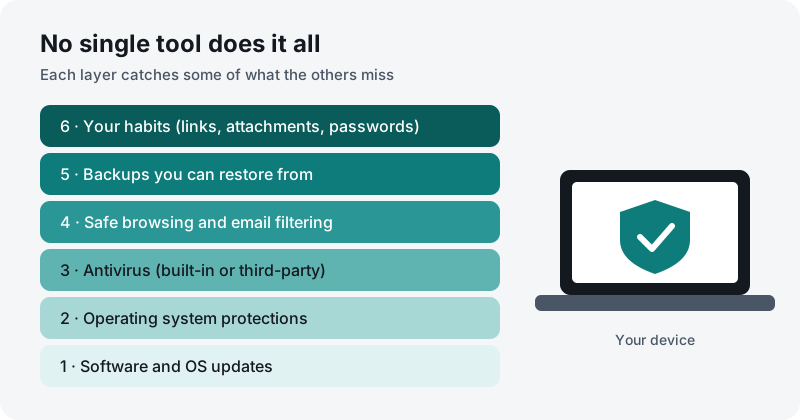
On every device
- Turn on automatic updates.
- Use a password manager or unique passwords, with two-factor authentication.
- Keep at least one offline backup.
- Be careful with unexpected links and attachments, even from people you know.
Sources
- AV-TEST, “Test antivirus software for Windows 11 – home users”: https://www.av-test.org/en/antivirus/home-windows/
- Microsoft Learn, “Protect important folders with controlled folder access”: https://learn.microsoft.com/en-us/defender-endpoint/controlled-folders
- Apple Platform Security guide: https://support.apple.com/guide/security/welcome/web
- Google Play Help, “Use Google Play Protect to help keep your apps safe”: https://support.google.com/googleplay/answer/2812853
- UK National Cyber Security Centre, guidance for individuals and families: https://www.ncsc.gov.uk/section/information-for/individuals-families
Menu paths can change between system versions. If they differ, follow your device maker's current documentation.